







Top 5 Methods to Convert FLAC to MP3 [Free and Paid]
Audiophiles often treasure their FLAC files for the pristine, lossless quality they deliver. However, those same files can be unsuitable when it comes to everyday listening on mobile devices or car stereos. Converting FLAC to MP3 bridges that gap, offering a more universally compatible format without sacrificing too much of the listening experience. In fact, modern encoders make it possible to preserve high-bitrate fidelity while shrinking file sizes for smoother playback. So, read this tutorial and learn about the best FLAC to MP3 conversion process.

PAGE CONTENT
Part 1. Lossless vs. Lossy: Why Converting FLAC to MP3 Makes Sense for Storage
Lossless formats like FLAC are great because they keep every single detail of a recording intact. The catch? The files are massive, and they'll eat through your storage space in no time. That's where MP3s come in handy. By stripping out audio data you can barely hear anyway, they give you a much smaller file that still sounds incredibly clean at higher bitrates. If you're managing a huge music library, converting FLAC to MP3 is just practical, especially for everyday listening or saving space on your phone. It keeps your collection portable and accessible without completely overwhelming your hard drive.
Part 2. Comparison of the Best FLAC to MP3 Converters
Want to take a peek at the best FLAC to MP3 converters? In that case, you can check the simple comparison table below to get more insights.
| FLAC to MP3 Converters | Conversion Speed | Ease of Use | Platform | Best For |
| Vidmore Video Converter | 50× faster | Simple | Windows and Mac | Users are looking for speed, premium features, and video/audio editing tools. |
| Foobar2000 | Fast | Simple | Windows and Mac | Audiophiles who want total control over metadata, tags, and advanced audio settings. |
| MediaHuman Audio Converter | Fast | Simple | Windows and Mac | Anyone wanting a simple, dedicated desktop audio converter without clutter. |
| Online Audio Converter | Depends on the internet | Simple | Browser | Quick, one-off conversions without installing software. |
| Apple Music | Standard | A little bit confusing | Windows and Mac | Mac users who want to convert files and immediately sync them to their local music library. |
Part 3. How to Convert FLAC to MP3
How to convert a FLAC audio file to MP3 format? Well, if you are looking for the best conversion process, you can start exploring all the methods we have provided in this section.
Method 1. Convert FLAC to MP3 Using Vidmore Video Converter
One of the most reliable converters you can use to convert your FLAC files into MP3 format is Vidmore Video Converter. This program is ideal if you want a fast conversion process. It can offer up to 50× after the conversion process. The best part here is that you can convert multiple FLAC files, thanks to its batch conversion feature. This converter ensures that you can get the result you need without consuming much time. What we like here is that you can also save the audio with the best quality for up to 320 kbps. So, if you want to transcode your FLAC to MP3 for better compatibility and satisfying playback, it would be better to utilize Vidmore Video Converter.
More Features
- The media converter can offer a comprehensive user interface.
- It can handle other audio formats, such as AAC, WAV, M4A, FLAC, and more.
- It can offer simple audio editing tools to improve your audio file.
- The program can also convert other media files, such as video and images.
To transcode FLAC to MP3, you can check the instructions we have provided below.
Step 1. Download Vidmore Video Converter on your Windows or Mac computer. After that, start launching the tool to proceed with the FLAC to MP3 conversion process.
Step 2. From the primary layout, go to the Converter and hit Add Files to start adding the FLAC file from your device. Since it supports the batch conversion feature, you can add more than one file.

Step 3. Navigate to the Output Format > Audio section below. Then, choose the MP3 format as your final output format. You can also select your desired audio quality.

Step 4. To begin the FLAC to MP3 conversion process, tap the Convert All button below. Once done, you can now check your MP3 file in your computer folder.

Method 2. Turn FLAC to MP3 Using Foobar2000
If you want a lightweight converter, you can access Foobar2000. This software ensures that you can smoothly and effectively convert your FLAC files into MP3 format. Since this program was created for audiophiles, it ensures that your data and metadata tags remain perfectly intact during the conversion procedure. It can also deal with multi-album batch processing with satisfying speed and consumes almost zero computer resources. The best part here is that it can even convert more audio formats. You can convert WMA to MP3, AAC to MP3, WAV to MP3, and more. So, if you are looking for another reliable FLAC to MP3 converter, look no further than Foobar2000.

Step 1. Download and install Foobar2000 on your computer. After that, run it to start the audio conversion process.
Step 2. For the next process, proceed to the Library section to see all the music, including your FALC files. Then, go to the File > Convert section and tap the three dots.
Step 3. Go to the Output Format section and choose MP3. Then, hit the Convert button below to start the FLAC to MP3 conversion process.
Limitations
- The interface might look outdated.
- There are times when the converter is not performing smoothly.
Method 3. Change FLAC to MP3 Using MediaHuman Audio Converter
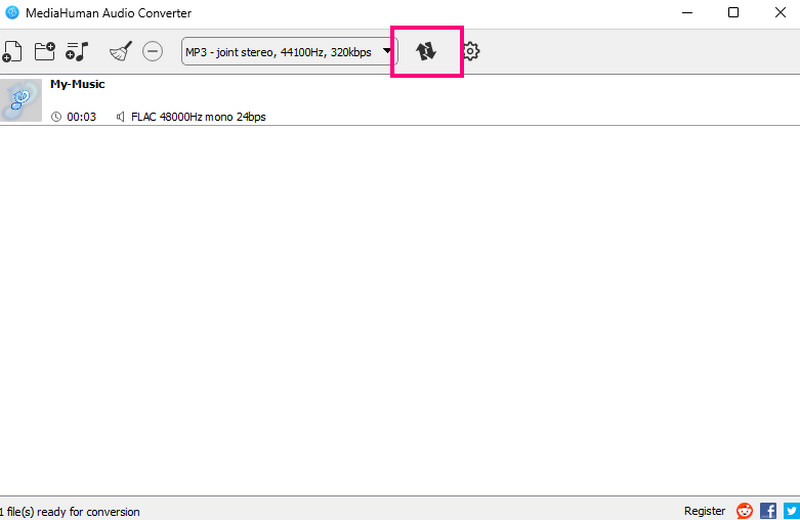
To convert FLAC format to MP3, you can also download MediaHuman Audio Converter. This program offers a drag-and-drop feature, allowing you to throw the entire files and folders and export them as MP3 format. The good thing about this converter is that it ensures a fast and smooth conversion process. It can even save the original audio quality for better audio playback. Plus, it can convert more formats, including AIFF to MP3, FLAC to M4A, M4A to MP3, and more. To begin the conversion process, feel free to use the steps below.
Step 1. Download and install MediaHuman Audio Converter. After you launch it, you can start the conversion process.
Step 2. Start drag-and-dropping your audio to the interface. Then, proceed to the Settings option to choose MP3 under the Output Format section.

Step 3. After that, click the Convert symbol above to start converting your FLAC file to MP3 format. Once done, you can now play your music on your computer.
Limitations
- The audio converter adds an audio editing tool to improve the overall audio.
- It is unsuitable for professionals since it can only offer the basics in converting.
Method 4. Convert FLAC to MP3 Using Online Audio Converter
Do you prefer converting your FLAC to MP3 online? In that case, you can access Online Audio Converter. This web-based audio converter is ideal if you want to convert files without any installation process. With this converter, you can transcode your files smoothly. What we like here is that you can choose your desired audio quality from 64 to 320 kbps. You can even edit your audio by adjusting the sample rate, variable, channel, and more. You can even upload your FLAC files from various platforms, such as Google Drive, Dropbox, and a URL. You can also transcode other audio formats, like AAC to MP3, M4A to FLAC, WMA to MP3, and more. So, always consider using this converter to convert FLAC format to MP3.

Step 1. First, go to your browser and access the Online Audio Converter. After that, click the Open Files option to start uploading the FLAC files from your computer, Dropbox, or Google Drive.
Step 2. Then, you can start selecting the MP3 file under the Format section. You can also hit the Advanced Settings option to adjust various parameters to your audio.
Step 3. For the final process, hit Convert to start converting your FLAC to MP3.
Limitations
- The online converter requires a stable internet connection.
- Some ads are showing up on the screen, which can be disturbing.
Method 5. Convert FLAC to MP3 Using Apple Music
For macOS users, Apple Music (formerly iTunes) provides a built-in, native method to convert high-fidelity FLAC files into more compressed, universally compatible formats. Since this is already integrated into the OS, you don't have to download a third-party application. Once you adjust your import settings to the MP3 Encoder, the software allows you to convert files in your library seamlessly while keeping everything organized. It is an excellent, friction-free alternative for anyone deeply embedded in the Apple ecosystem who wants their converted files ready for immediate syncing to their phone. To check the software's capability, you can follow the instructions below.

Step 1. Launch the Apple Music app on your Mac and proceed to Files > Preferences > Import Settings. Then, select the MP3 Encoder.
Step 2. After that, you can start selecting the FLAC file. Click the File > Convert options and tap the Create MP3 Version. After that, your FLAC will be saved as an MP3 file.
Step 3. You can start listening to your music on any platform.
Limitations
- The process is only ideal for Mac users.
- Users might find the conversion process complicated.
Part 4. Tips for Maintaining Album Art and Metadata
Read here to learn some tips to maintain the metadata and album art of your audio files.
- Always use a reliable converter. Choose a converter that supports full ID3 tags mapping.
- Always check the import and export settings. Ensure that your converter is set to copy embedded metadata and artwork, ensuring the conversion process.
- Before the conversion, you must embed artwork using a tag editor.
- You have to verify after the conversion process. Open the MP3 in a tag editor to confirm that album art, cover art, and other information are transferred correctly.
Part 5. FAQs about FLAC to MP3
Is MP3 better than FLAC?
When it comes to audio quality, we can tell that FALC is better. However, if you want to play your audio on various platforms or media players, MP3 is far superior. You can play the file without encountering any compatibility issues.
What is the best converter for converting FLAC to MP3?
If you want the best converter, try using Vidmore Video Converter. This converter ensures that you can get the result you need since it has all the features you need, such as smooth conversion, fast conversion, and high audio quality.
Is it safe to transcode FLAC to MP3 online?
If you want to convert your files online safely, you must use a reliable online tool. Some of them are Online Audio Converter, Convertio, FreeConvert, and Zamzar.
Conclusion
To convert FLAC to MP3, there is no doubt that the methods we have provided in this tutorial are the best ones. With that, choose your preferred method and start the conversion process. Plus, if you are unsure which converter to use, feel free to use Vidmore Video Converter. With its fast and smooth conversion feature, there is no doubt that this converter is the best choice for users.